Light Phone: Minimal tech, maximum access

This project focuses on a WCAG (Web Content Accessibility Guidelines) audit of the Light Phone II, a minimalist device designed for mindful use, offering only essential functions such as calls, texts, alarms, and navigation.

The audit informed a redesign effort aimed at improving accessibility.


The goal is to reduce digital overload while ensuring users of all abilities can engage with the device without sacrificing simplicity.


Team

Atisha Kudesia · Naomi Shah


Artefacts

WCAG Accessibility Audit → Resulting product features: Scalable UI and Text-to-Speech


Duration

Sept 2025 – Dec 2025 (12‑week sprint)

Tools

2 months (March 2025 - May 2025)

Light Phone: Minimal tech, maximum access

This project focuses on a WCAG (Web Content Accessibility Guidelines) audit of the Light Phone II, a minimalist device designed for mindful use, offering only essential functions such as calls, texts, alarms, and navigation.

The WCAG audit informed a redesign effort aimed at improving accessibility.


The goal is to reduce digital overload while ensuring users of all abilities can engage with the device without sacrificing simplicity.


Team

Atisha Kudesia · Naomi Shah


Artefacts

WCAG Accessibility Audit → Resulting product features: Scalable UI and Text-to-Speech

Duration

Sept 2025 – Dec 2025 (12‑week sprint)


Tools

Figma · Fusion 360 · Arduino IDE · VS Code · MQTT Explorer

The challenge...

The challenge...

to preserve Light Phone II’s mindful minimalism while conducting a WCAG accessibility audit and translating its findings into a redesign that ensures equitable usability, particularly for users with visual and motor barriers.

to preserve Light Phone II’s mindful minimalism while conducting a WCAG accessibility audit and translating its findings into a redesign that ensures equitable usability, particularly for users with visual and motor barriers.

The Light Phone’s minimalist design unintentionally creates barriers for low-vision, motor-impaired, and cognitively diverse users.

The Light Phone’s minimalist design unintentionally creates barriers for low-vision, motor-impaired, and cognitively diverse users.

Together, they transform Light Phone into a device that stays simple but becomes radically more inclusive.

Together, they transform Light Phone into a device that stays simple but becomes radically more inclusive.

Instead of adding complexity to the UI,

Instead of adding complexity to the UI,

we built two lightweight, system-level accessibility pathways that preserve the device’s minimalist ethos:

we built two lightweight, system-level accessibility pathways that preserve the device’s minimalist ethos:

1. Scalable UI

1. Scalable UI

Makes the interface flexible and comfortable for all vision and motor needs.

Makes the interface flexible and comfortable for all vision and motor needs.

2. Text-to-Speech

2. Text-to-Speech

Makes core communication accessible even without relying on vision.

Makes core communication accessible even without relying on vision.

Scalable UI

A flexible layer allowing users to adjust:

Text size presets for better readability.


Adaptive layout reflow so text doesn’t truncate on the tiny E-ink display.

Scalable UI

A flexible layer allowing users to adjust:

Text size presets for better readability.


Adaptive layout reflow so text doesn’t truncate on the tiny E-ink display.

This feature directly solves the audit’s core gap: the interface must adapt to the user, not ask the user to adapt to the device.

This feature directly solves the audit’s core gap: the interface must adapt to the user, not ask the user to adapt to the device.

Text-to-Speech for Messages

The design introduces a native Text-to-Speech mode, enabling users to:

Hear messages read aloud


Auto read feature, adjust text-to-speech speed


Receive spoken confirmation of feedback messages (sent, delivered, failed)

Text-to-Speech for Messages

The design introduces a native Text-to-Speech mode, enabling users to:

Text size presets for better readability.


Adaptive layout reflow so text doesn’t truncate on the tiny E-ink display.

This feature directly responds to missing WCAG compliance for non-visual access and programmatic status communication.

This feature directly responds to missing WCAG compliance for non-visual access and programmatic status communication.

These decisions move the Light Phone closer to its core goal: a simple device that works for everyone.

These decisions move the Light Phone closer to its core goal: a simple device that works for everyone.

It is how the experience stays usable, calm, and consistent for people with different needs, strengthening the product now and setting a clear foundation for future accessible features.

It is how the experience stays usable, calm, and consistent for people with different needs, strengthening the product now and setting a clear foundation for future accessible features.

Things to maximum access:

A WCAG 2.1 , 2.2 Audit

Things to maximum access:

A WCAG 2.1 , 2.2 Audit

We prioritised features that affect visual, motor, and cognitive accessibility.


Assessed each criterion as:
Pass / Partial / Fail / Unknown

We prioritised features that affect visual, motor, and cognitive accessibility.


Assessed each criterion as:
Pass / Partial / Fail / Unknown

Perceivable: Information and user interface components must be presentable to users in ways they can be visible to all of their senses.

WCAG Criterion

Level

Status

Notes

Recommendations

1.1.1 Non-text Content

A

⚠️ Partial:

Hard to access

While it is technically possible to add a screen reader like TalkBack to the Light Phone 2 by installing custom software, this process is not native or straightforward.


The phone’s minimal OS and lack of built-in accessibility support make it difficult for users with visual impairments to independently install or activate such tools.

Integrate a native screen reader or built-in accessibility features that can be enabled directly through the device settings without requiring developer mode or third-party installations.

1.2 Time-based Media

A/AA/AAA

N/A

Device UI contains no video/audio media.

None.

1.3.1 Info & Relationships

A

⚠️ Partial

Interface is intentionally minimal; its visual hierarchy and relationships are clear and consistent.


Core elements, such as menus and text, are well-separated.


However, the minimal design makes buttons less distinguishable from static elements, which may cause confusion for some users

Define explicit structure/order for screen elements. Improve button visibility through subtle contrast, outlines, or feedback states (e.g., press animations) to ensure interactive components are easily recognizable without compromising the minimalist design.

1.3.2 Meaningful Sequence

A

⚠️ Partial

Touch interactions may not follow logical reading order for assistive tech.

Verify logical sequence of elements for future TTS mode.

1.3.3 Sensory Characteristics

A

✅ Pass

Functions not solely dependent on color/sound.

Maintain

1.3.4 Orientation

AA

❌ Fail

Has a fixed vertical (portrait) orientation. The interface does not automatically rotate or adapt to landscape mode.


The lack of support for both orientations can impact accessibility for users who physically mount or hold the device in a fixed position (e.g., wheelchair users or those with limited dexterity who use assistive mounts). These users cannot reorient the screen easily to suit their needs.

Allow optional orientation flexibility where possible, especially for text input or message reading, so the device can accommodate users who rely on a specific physical setup. Even partial support (like rotating message or settings screens) would improve accessibility without undermining the minimalist intent.

1.3.5 Identify Input Purpose

AA

❌ Fail

Input fields are visually clear but not programmatically identifiable since the phone’s minimalist OS does not include semantic labeling or assistive technology support

Add metadata or accessibility tags to input fields to define their purpose

1.4.1 Use of Color

A

✅ Pass

E-Ink UI uses monochrome; no color-only indicators.

Maintain.

1.4.2 Audio Distinguishable

A

⚠️ Partial

Produces very limited audio feedback.


Users can control the overall device volume, but not separate system sounds from notifications or alarms.


Additionally, the device does not support audio descriptions or text alternatives for any auditory content.

1.4.3 Contrast (Sufficient)

AA

⚠️ Partial

E-Ink contrast is good in daylight and back light settings are available. However, no contrast settings.

1.4.4 Resize Text

AA

❌ Fail

Users can not change text size.

Add font-size presets or zoom mode.

1.4.6 Contrast (Enhanced)

AAA

⚠️ Partial

Since there are no settings to adjust contrast, there may be situations where the text contrast does not fully meet the ≥ 7:1 ratio.

See 1.4.3.

1.4.8 Visual Presentation

AAA

⚠️ Partial

Simple layout aids readability; limited text customization.

Add spacing, line-height, and theme options.

1.4.10 Reflow

AA

⚠️ Partial

Fixed layout on 2.84″ screen; text may truncate.

Implement dynamic reflow.

1.4.11 Non-text

Contrast

AA

N/A

N/A

N/A

1.4.12 Text Spacing

AA

❌ Fail

Users can not change text spacing. Limited screen space restricts such customizations.


However, system text is short and readable.

Provide alternative display modes with increased spacing for better readability. Even basic customization options (like “compact” and “comfortable” modes)

1.4.13 Content on Hover or Focus

AA

N/A

N/A

N/A

Robust: Content must be robust enough to be able to access the content as technologies advance.

WCAG Criterion

Level

Status

Notes

Recommendations

4.1.2 Name, Role, Value


A

❌ Fail

Because the Light Phone 2 runs on a heavily modified, minimal version of Android with limited support for accessibility APIs, the interface elements (like buttons, icons, and menus) do not expose proper names, roles, or values to assistive technologies.


Status messages, such as notifications or task completions, are visually displayed but are not programmatically conveyed in a way that a screen reader could detect or read aloud.

Enhance system-level accessibility support by ensuring that each interactive element has a defined role and label that can be interpreted by assistive technologies.


Incorporating Android’s built-in accessibility APIs or standardized semantic tags would allow status messages and interface feedback to be programmatically accessible.

4.1.3 Status Messages

AA

❌ Fail

Same as 4.1.2

Same as 4.1.2

Operable: User interface components and navigation must be operable i.e. the interface cannot require interaction that a user cannot perform.

WCAG Criterion

Level

Status

Notes

Recommendations

2.1.1 Keyboard Accessible

A

❌ Fail

Touch-only. No external keyboard or hardware navigation support.

Support Bluetooth keyboard or directional buttons.

2.1.2 No Keyboard Trap

A

N/A

No keyboard focus.

N/A

2.1.4 Character Key Shortcuts

A

N/A

N/A

N/A

2.2.1 Timing Adjustable

A

N/A

No timed tasks.

N/A

2.2.2 Pause, Stop, Hide

A

✅ Pass

E-ink display and minimalist operating system do not use any moving, blinking, or auto-scrolling content. The interface is static.

N/A

2.3.1 Three Flashes or Below Threshold

A

✅ Pass

E-Ink display cannot flash rapidly.

N/A

2.4.1 Bypass Blocks

A

✅ Pass

No long blocks of content.

N/A

2.4.3 Focus Order

A

⚠️ Partial

Unknown focus order; UI may not expose focus states.

Define consistent focus path.

2.4.4 Link Purpose (in Context)

A

✅ Pass

Few interactive links; icons have clear purpose visually.

Maintain

2.4.5 Multiple Ways

AA

N/A

N/A

N/A

2.4.6 Headings & Labels

AA

⚠️ Partial

Minimal labels; unclear for screen-reader equivalence.

Add explicit text labels.

2.4.7 Focus Visible

AA

❌ Fail

No visible focus indicator or highlight for current selection.

Implement high-contrast focus outline or haptic cue.

2.5.1 Pointer Gestures

A

⚠️ Partial

Complex gestures minimal, but fine-motor precision needed.

Provide single-tap alternatives; tolerance for motor errors.

2.5.2 Pointer Cancellation

A

⚠️ Partial

No documentation. Accidental taps likely.

Add confirmation prompts for destructive actions.

2.5.3 Label in Name

A

❌ Fail

The Light Phone 2, however, has a highly visual and icon-based interface with no built-in screen reader or accessibility API support. Most interactive elements (e.g., icons for calls, texts, alarms, and settings) are represented by minimal symbols without visible text labels. Because there are no accessible names or screen reader labels, this criterion is not applicable in practice

Each icon or control includes a programmatically determinable name matching the visible text or intended label


Voice and screen reader users receive consistent cues between what’s shown on screen and what’s announced.

2.5.5 Target Size (44 × 44 px)

AAA

❌ Fail

Small touch targets reported as clumsy.

Enlarge buttons or provide spacing options.

2.5.7 Dragging Movements

AA

N/A

Interactions are mostly tapping or scrolling.

N/A

Understandable: Information and the operation of user interface must be understandable i.e.the content or operation cannot be beyond their understanding.

WCAG Criterion

Level

Status

Notes

Recommendations

3.1.1 Language of Page

A

✅ Pass

English set as system language.

Maintain

3.1.2 Language of Parts

AA

❌ Fail

Input limited to English QWERTY; no multilingual UI.

Add multiple input languages.

3.1.3 – 3.1.6 Readability & Language Clarity

AAA

✅ Pass

Uses extremely simple language with minimal text, single words or short phrases like Call, Text, Alarm, and Settings.


There are no unusual words, abbreviations, or jargon that require additional explanation.


Pronunciation guidance is not provided; however, given the simplicity of the vocabulary, this does not significantly impact usability.


The reading level is well below secondary education, which aligns with accessibility best practices for cognitive ease.

Maintain

3.2.1 – 3.2.4 Predictable Interaction & Consistency

A and AA

Actions such as tapping or scrolling behave predictably, and navigation remains uniform across all menus.


Importantly, nothing changes unexpectedly on focus or input; users must explicitly confirm each action, reducing confusion or accidental triggers.

Maintain

3.2.6 Consistent Help

A

❌ Fail

No built-in help mechanisms within the device interface.


Support is provided externally through the Light Phone website and community forums, rather than through the phone’s operating system.


As a result, users cannot access help resources directly or consistently from within the device menus.

N/A

3.3.1 Error Identification

A

Typing errors are announced, but no clear explanation is provided for the cause of the error.


Instead of just announcing the error, include a concise explanation of why the error occurred.


Example: “Typing error – invalid character entered”, or “Error: message failed to send due to network timeout”.


Provide next-step guidance: “Please check connection and retry”, or “Remove special characters and try again”.


This enhances transparency for users and reduces confusion.

3.3.2 Labels or Instructions

A

⚠️ Partial

Limited on-screen hints.

Provide brief text labels or tutorial overlay.

3.3.3 Error Suggestion

A

❌ Fail

Very limited input functions. Can detect simple input errors (such as missing digits in a phone number), it does not provide automated correction suggestions

Lightweight, non-intrusive error feedback. ex: brief text hints (“Please enter a valid number”) or subtle visual indicators.

3.3.4 Error Prevention

AA

N/A

N/A

N/A

3.3.7 Redundant Entry

AAA

N/A

N/A

N/A

3.3.8 Accessible

Authentication

AAA

N/A

N/A

N/A

Takeaways from our audit

1. The Light Phone’s minimalist interface creates unintended accessibility barriers.


Buttons are visually minimal,
making it difficult to distinguish interactive elements.

Users with low vision or cognitive differences have no clarity on what is tappable.

2. The device lacks foundational assistive technology support.


No built-in screen reader; no accessibility API support.


Feedback cannot be announced by assistive tech.

Text on the device is not adaptable to user needs.


No ability to resize text, increase spacing, or adjust contrast.

Fixed layout makes reading difficult for low-vision users or users with dexterity constraints.

Touch interactions require fine motor precision.


Small touch targets (< 44px), no orientation flexibility, and no alternative input methods.


This excludes users with motor impairments, tremors, or situational limitations.

Takeaways from our audit

1. The Light Phone’s minimalist interface creates unintended accessibility barriers.

Buttons are visually minimal,
making it difficult to distinguish interactive elements.

Users with low vision or cognitive differences have no clarity on what is tappable.

2. The device lacks foundational assistive technology support.

No built-in screen reader; no accessibility API support.


Feedback cannot be announced by assistive tech.

  1. Text on the device is not adaptable to user needs.

No ability to resize text, increase spacing, or adjust contrast.

Fixed layout makes reading difficult for low-vision users or users with dexterity constraints.

  1. Touch interactions require fine motor precision.

Small touch targets (< 44px), no orientation flexibility, and no alternative input methods.


This excludes users with motor impairments, tremors, or situational limitations.

Before finalizing these flows, we also explored..

Before finalizing these flows, we also explored..

1. User flows

1. User flows

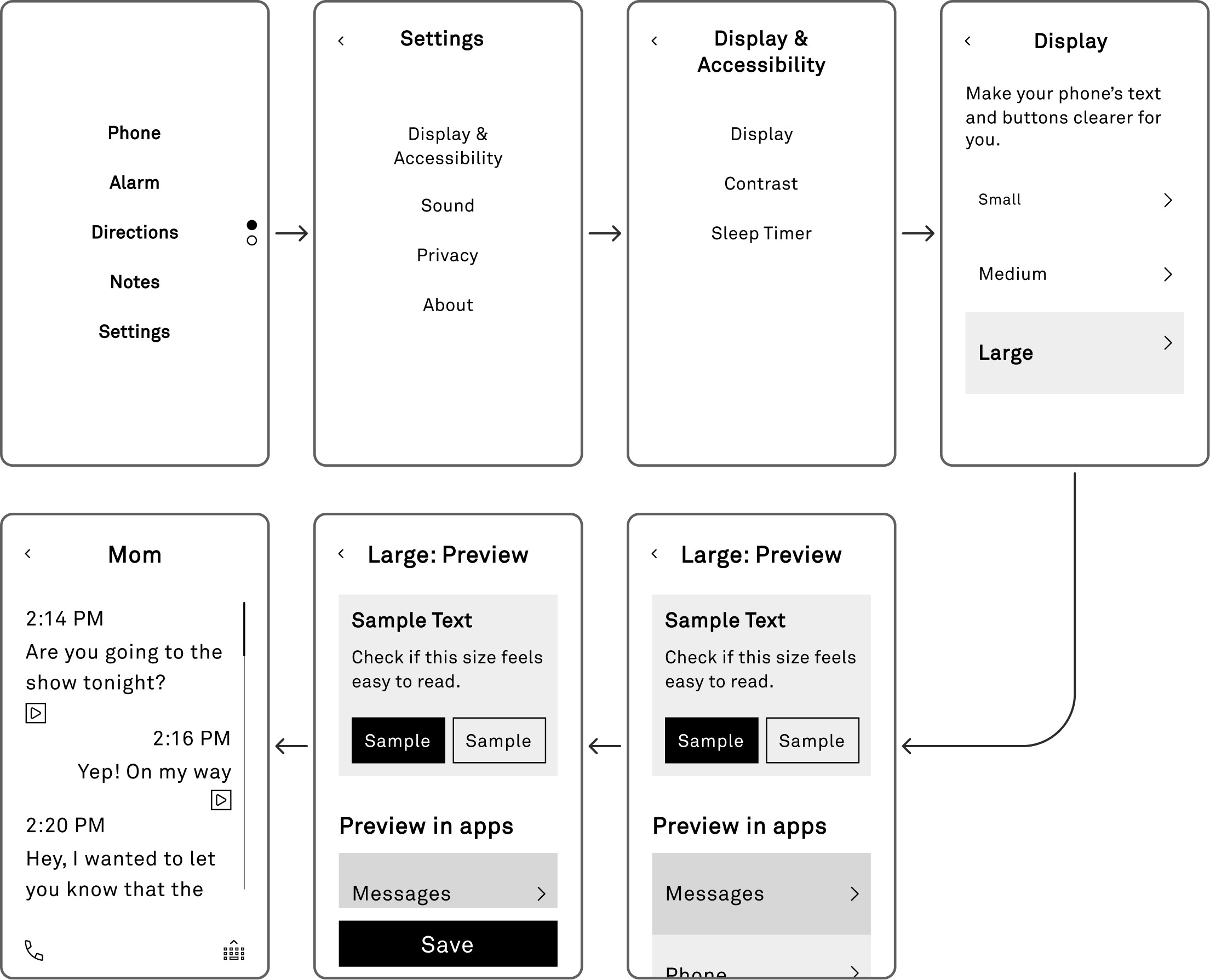
Explored Flow

Explored Flow

The information architecture is hyper-nested.


It increases friction. Users might take longer to find settings, miss key features, and lose context as they move through too many layers.

The information architecture is hyper-nested.


It increases friction. Users might take longer to find settings, miss key features, and lose context as they move through too many layers.

Menu

Menu

Settings

Settings

Display & Accessibility

Display & Accessibility

Display

Display

Voiceover

Voiceover

Haptic Feedback

Haptic Feedback

Text Sizes

Text Sizes

Preview in System Apps

Preview in System Apps

Messages

Messages

Phone

Phone

Alarm

Alarm

Phone

Alarm

Directions

Notes

Settings

Settings

Display & Accessibility

Sound

Privacy

About

Display & Accessibility

Display

Contrast

Sleep Timer

Display

Small

Medium

Large

Make your phone’s text and buttons clearer for you.

Large: Preview

Preview in apps

Phone

Alarm

Messages

Sample Text

Check if this size feels easy to read.

Sample

Sample

Large: Preview

Preview in apps

Phone

Alarm

Messages

Sample Text

Check if this size feels easy to read.

Sample

Sample

Save

Mom

2:14 PM

Are you going to the show tonight?

2:16 PM

Yep! On my way

2:20 PM

Hey, I wanted to let you know that the

Finalised Flow

Finalised Flow

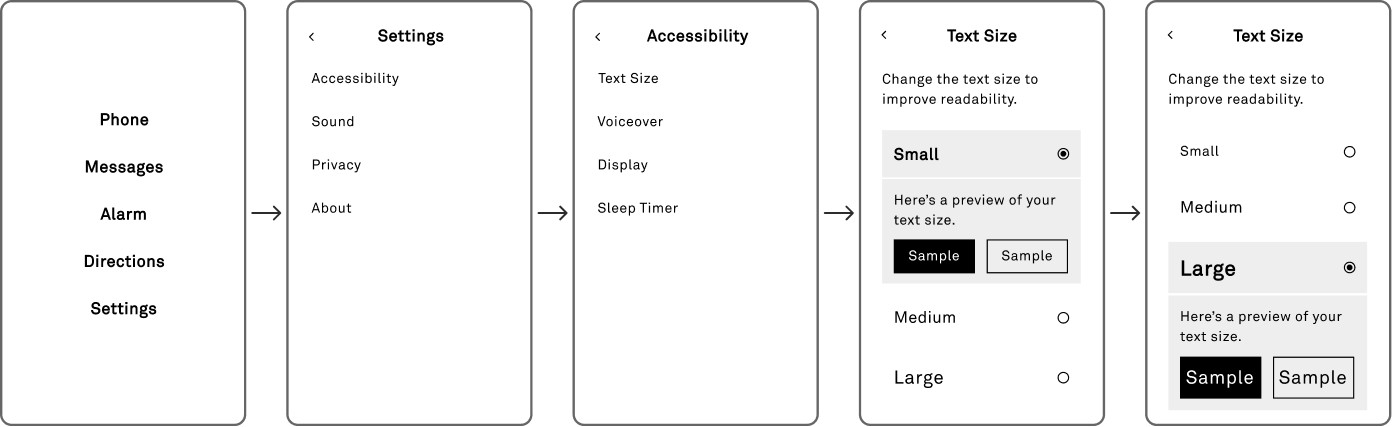
This flow reduces depth and improves way finding.


Users can reach each setting faster, keep context, and avoid drilling through unnecessary layers.

This flow reduces depth and improves way finding.


Users can reach each setting faster, keep context, and avoid drilling through unnecessary layers.

Menu

Menu

Settings

Settings

Display & Accessibility

Display & Accessibility

Display

Display

Voiceover

Voiceover

Haptic Feedback

Haptic Feedback

Phone

Messages

Alarm

Directions

Settings

Settings

Accessibility

Sound

Privacy

About

Accessibility

Text Size

Voiceover

Display

Sleep Timer

Small

Here’s a preview of your text size.

Sample

Sample

Medium

Large

Change the text size to improve readability.

Text Size

Small

Medium

Large

Here’s a preview of your text size.

Sample

Sample

Change the text size to improve readability.

Text Size

2. UX Writing

2. UX Writing

We focused on clarity, low cognitive load, and consistent system language while exploring the UI copies.


We ensured every phrase aligned with the Light Phone’s simple, calm, and intentionally minimal voice so users could understand actions quickly without jargon or effort.

We focused on clarity, low cognitive load, and consistent system language while exploring the UI copies.


We ensured every phrase aligned with the Light Phone’s simple, calm, and intentionally minimal voice so users could understand actions quickly without jargon or effort.

Finalised UX copy

Pick a text size that’s comfortable to read.

Sample

Sample

Scalable UI dialog box

Alternate copy

Alternate copy

Set the text size that feels easiest for you.

Set the text size that feels easiest for you.

Make your phone’s text and buttons clearer for you.

Make your phone’s text and buttons clearer for you.

Change text size to make it easy to read.

Change text size to make it easy to read.

Text Size

Navigation bar

Alternate copy

Alternate copy

Display

Display

Display & Accessibility

Display & Accessibility

Voice Over

Navigation bar

Alternate copy

Text-to-speech

Text-to-speech

Live Speech

Live Speech

Text Reader

Text Reader

  1. Interface Layout Decisions

  1. Interface Layout Decisions

Scalable UI

Scalable UI

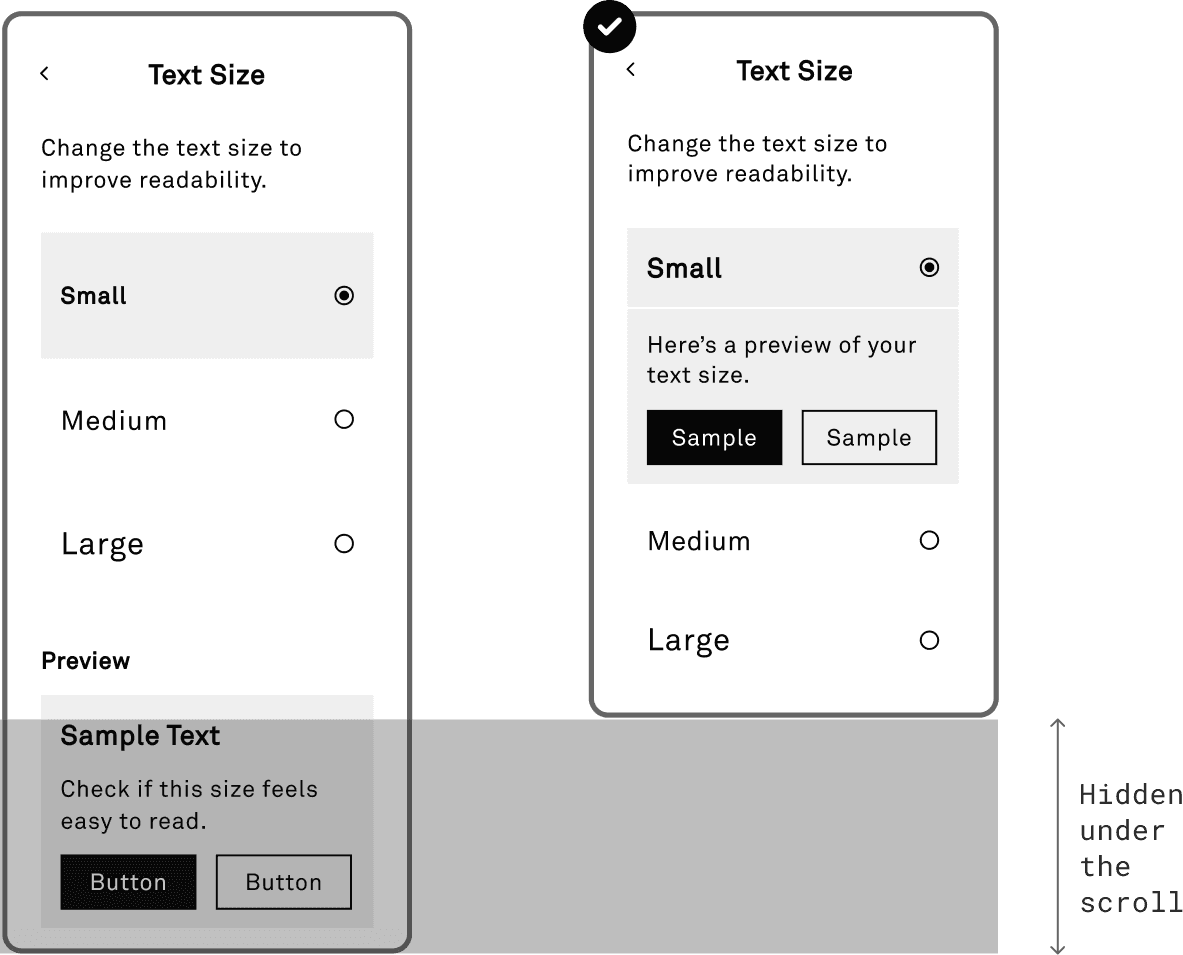
The finalised option keeps the preview directly attached to the selected option.


This reduces scrolling, tightens the feedback loop, and lets users see the result at the moment they make a choice.


The first layout separates the preview from the selection, which slows evaluation and forces extra movement.

The finalised option keeps the preview directly attached to the selected option.


This reduces scrolling, tightens the feedback loop, and lets users see the result at the moment they make a choice.


The first layout separates the preview from the selection, which slows evaluation and forces extra movement.

List Layout

List Layout

We explored ways to highlight the selected option without extra text or clutter, keeping the hierarchy clean and the layout aligned with the Light Phone’s minimal style.

We explored ways to highlight the selected option without extra text or clutter, keeping the hierarchy clean and the layout aligned with the Light Phone’s minimal style.

Display

Display

Small

Small

Medium

Medium

Large

Large

Display

Display

Small

Small

Medium

Medium

Large

Large

Display

Display

Medium

Medium

Large

Large

Small

Small

Make your phone’s text and buttons clearer for you.

Make your phone’s text and buttons clearer for you.

Button Stacking

Button Stacking

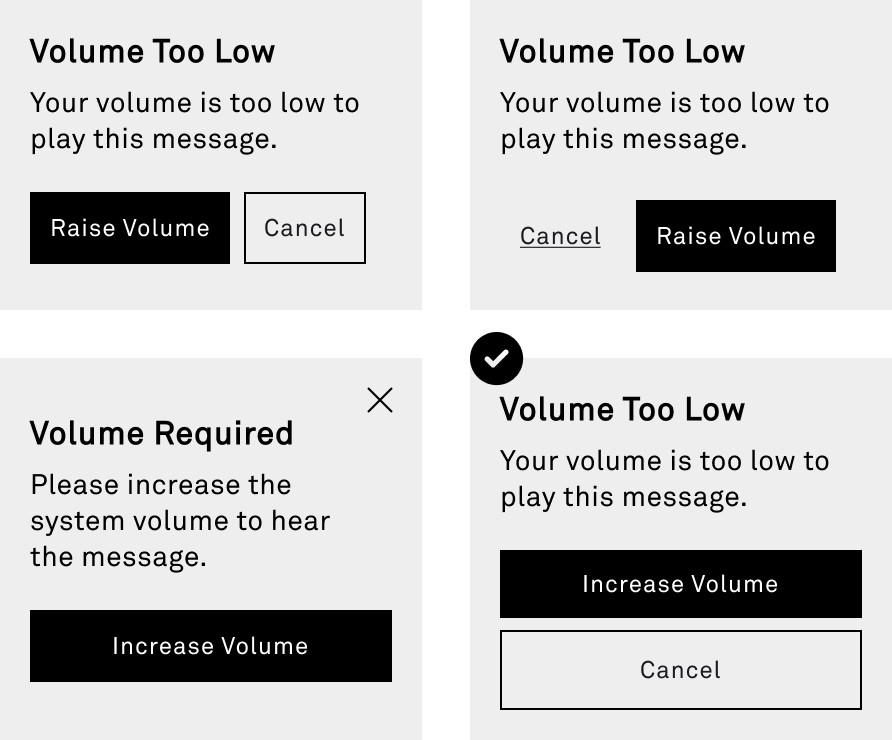
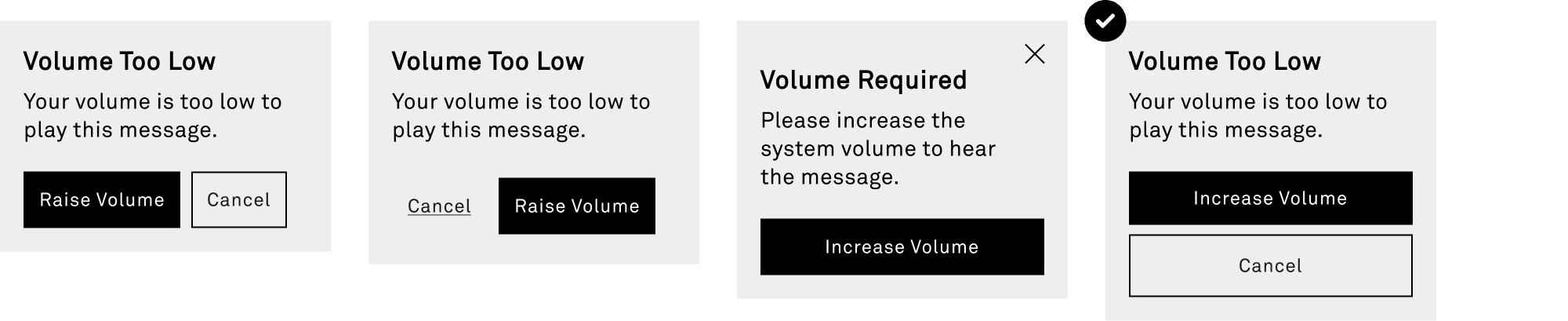
Instead of placing buttons side-by-side, we stacked them vertically at full width to increase tap accuracy and create a clearer, more accessible touch target.

Instead of placing buttons side-by-side, we stacked them vertically at full width to increase tap accuracy and create a clearer, more accessible touch target.

Style guide

Style guide

Before prototyping, we built a unified system to support accessible interactions that are scalable, legible, and intuitive, without compromising the device’s minimalist ethos. This style guide ensures every feature feels native to the device’s distraction-free design.

Before prototyping, we built a unified system to support accessible interactions that are scalable, legible, and intuitive, without compromising the device’s minimalist ethos. This style guide ensures every feature feels native to the device’s distraction-free design.

Type Hierarchy: Designed for Legibility

Type Hierarchy: Designed for Legibility

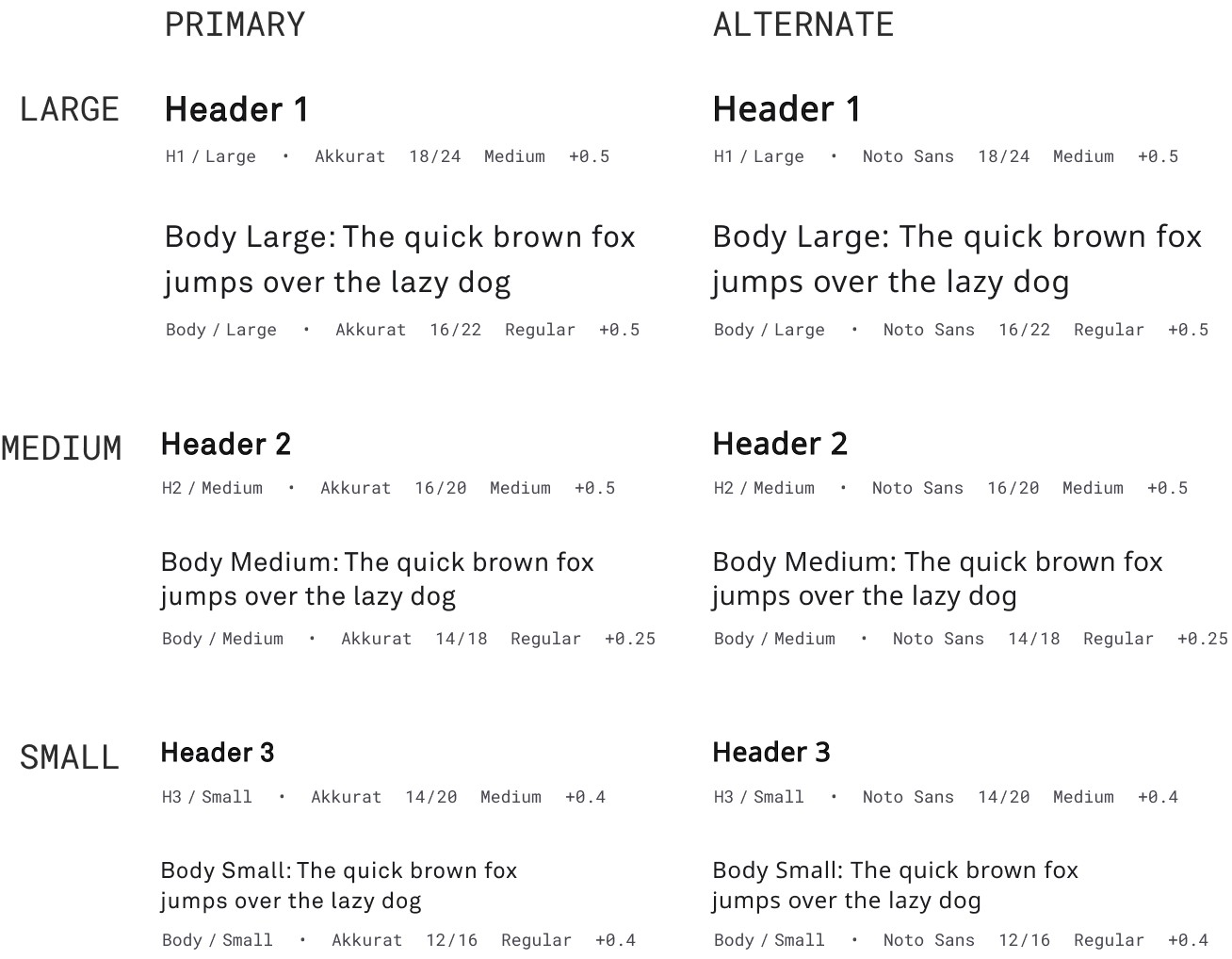
We created size presets that preserve layout, increase contrast and weight to strengthen hierarchy to support users with low vision, dyslexia, or reading fatigue.

We created size presets that preserve layout, increase contrast and weight to strengthen hierarchy to support users with low vision, dyslexia, or reading fatigue.

PRIMARY

PRIM

ALTERNATE

ALTERNATE

Header 1

H1

/

Large

Akkurat

18

/

24

Medium

+0.5

Body Large: The quick brown fox jumps over the lazy dog

Body

/

Large

Akkurat

16

/

22

Regular

+0.5

Header 1

H1

/

Large

Noto Sans

18

/

24

Medium

+0.5

Body Large: The quick brown fox jumps over the lazy dog

Body

/

Large

Noto Sans

16

/

22

Regular

+0.5

LARGE

Header 2

H2

/

Medium

Akkurat

16

/

20

Medium

+0.5

Body Medium: The quick brown fox jumps over the lazy dog

Body

/

Medium

Akkurat

14

/

18

Regular

+0.25

Header 2

H2

/

Medium

Noto Sans

16

/

20

Medium

+0.5

Body Medium: The quick brown fox jumps over the lazy dog

Body

/

Medium

Noto Sans

14

/

18

Regular

+0.25

MEDIUM

Header 3

H3

/

Small

Akkurat

14

/

20

Medium

+0.4

Body Small: The quick brown fox jumps over the lazy dog

Body

/

Small

Akkurat

12

/

16

Regular

+0.4

Header 3

H3

/

Small

Noto Sans

14

/

20

Medium

+0.4

Body Small: The quick brown fox jumps over the lazy dog

Body

/

Small

Noto Sans

12

/

16

Regular

+0.4

SMALL

Colour System: High Contrast, Intentional

Colour System: High Contrast, Intentional

We kept the original black-and-white E-ink palette, intentionally avoiding colour to preserve the device’s calm, distraction-free experience, while ensuring contrast levels that support users with low vision, dyslexia, or reading fatigue.

We kept the original black-and-white E-ink palette, intentionally avoiding colour to preserve the device’s calm, distraction-free experience, while ensuring contrast levels that support users with low vision, dyslexia, or reading fatigue.

#ffffff

#ffffff

#000000

#000000

Buttons & Components: Minimal but Inclusive

Buttons & Components: Minimal but Inclusive

Examined the core components through an accessibility-first lens, expanding touch targets to meet 44px standards, making buttons clearer, and adding more feedback states. Paired icons with labels for better comprehension. Interactions that remain familiar and minimal, but far more forgiving and inclusive.

Examined the core components through an accessibility-first lens, expanding touch targets to meet 44px standards, making buttons clearer, and adding more feedback states. Paired icons with labels for better comprehension.


Interactions that remain familiar and minimal, but far more forgiving and inclusive.

button

Button

/

Primary

/

Default

Akkurat

12

/

20

Regular

+0.4

|o|

10

|o|

6

Button

Button

/

Secondary

/

Default

Akkurat

12

/

20

Regular

+0.4

|o|

10

|o|

6

Button

Button

/

Tertiary

/

Default

Akkurat

12

/

20

Regular

+0.4

|o|

10

|o|

6

BUTTON-DEFAULT

BUTTON-DEFAULT

button

Button

/

Primary

/

Disabled

Akkurat

12

/

20

Regular

+0.4

|o|

10

|o|

6

Button

Button

/

Secondary

/

Disabled

Akkurat

12

/

20

Regular

+0.4

|o|

10

|o|

6

Button

Button

/

Tertiary

/

Disabled

Akkurat

12

/

20

Regular

+0.4

|o|

10

|o|

6

BUTTON-DISABLED

BUTTON-DISABLED

MINIMAL ICONS

The company’s value is the experience
of going light, which is why we believe accessibility is core to our business.

The company’s value is the experience
of going light, which is why we believe accessibility is core to our business.

1. Widens market

1. Widens market

By making it usable for people with low vision, cognitive differences,
and aging users as well
as children.

By making it usable for people with low vision, cognitive differences,
and aging users as well as children.

  1. Increase user adoption

  1. Increase user adoption

By strengthening brand trust, and positions Light as a device that supports all users, not just tech-minimalists.

By strengthening brand trust, and positions Light as a device that supports all users, not just tech-minimalists.

3. Reduces CX burden

3. Reduces CX burden

By creating a more intuitive and self-navigable product.

By creating a more intuitive and self-navigable product.

And this makes the customer experience better because

And this makes the customer experience better because

1. Scalable UI

1. Scalable UI

ensures that users can read, navigate, and interact with the device comfortably in any context, sunlight, aging vision, motion, or temporary impairment.

ensures that users can read, navigate, and interact with the device comfortably in any context, sunlight, aging vision, motion, or temporary impairment.

2. Text-to-Speech

2. Text-to-Speech

gives users hands-free access to messages and essential information, therefore, expanding how and when the it can be used.

gives users hands-free access to messages and essential information, therefore, expanding how and when the it can be used.

Together, they make the device more intuitive, more flexible, and more supportive of real-life needs, without compromising its core minimalist philosophy.

Together, they make the device more intuitive, more flexible, and more supportive of real-life needs, without compromising its core minimalist philosophy.